Free AI Face Animator: Let Your Portrait Do the Talking
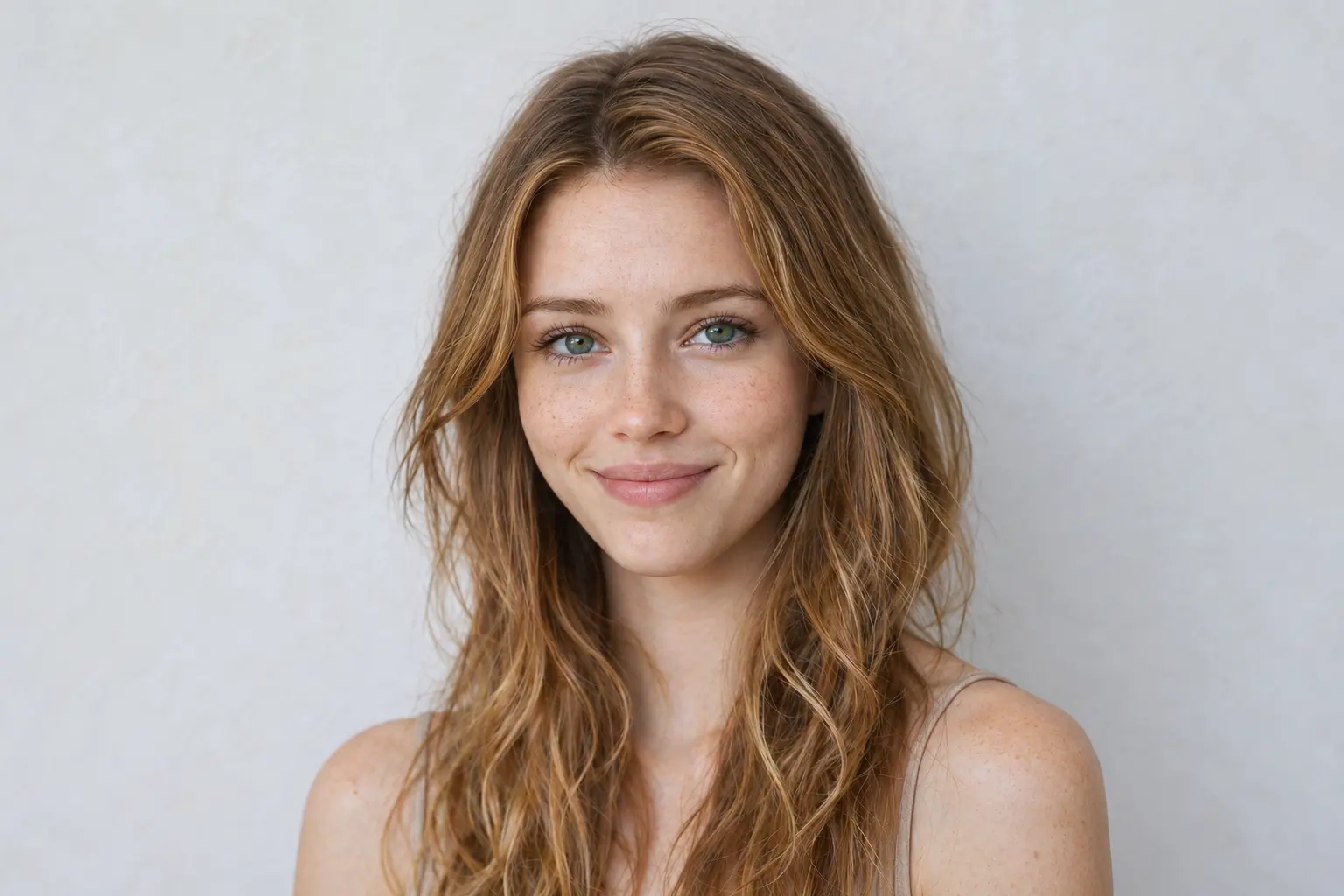
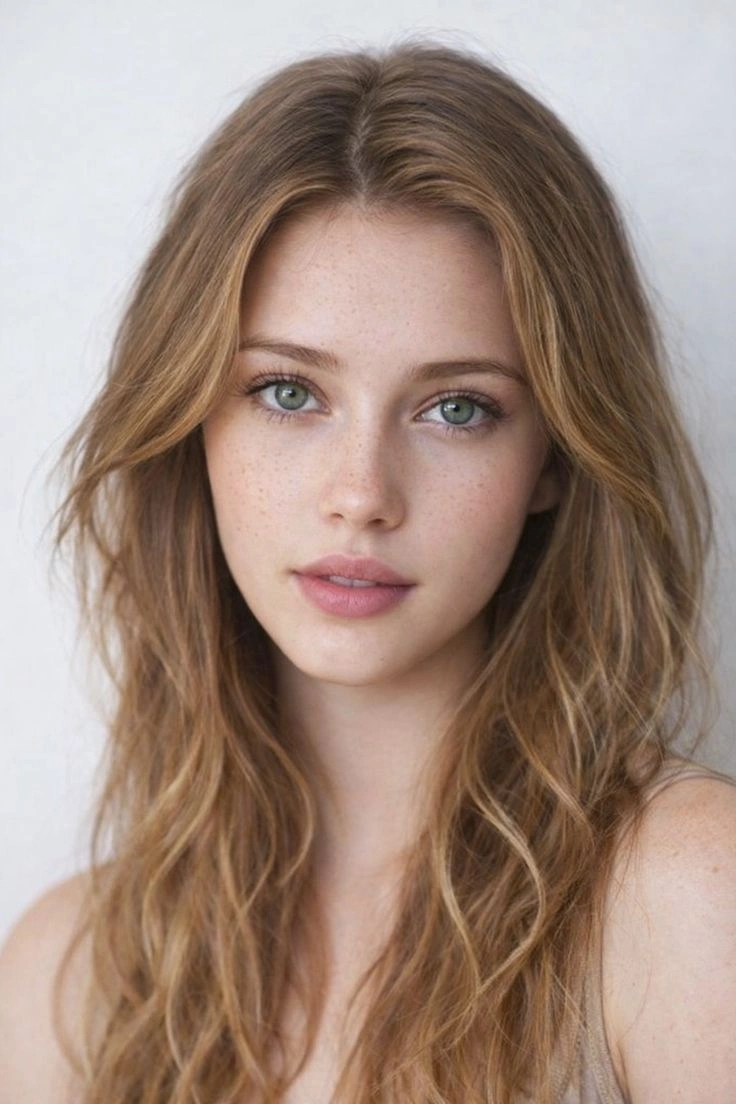
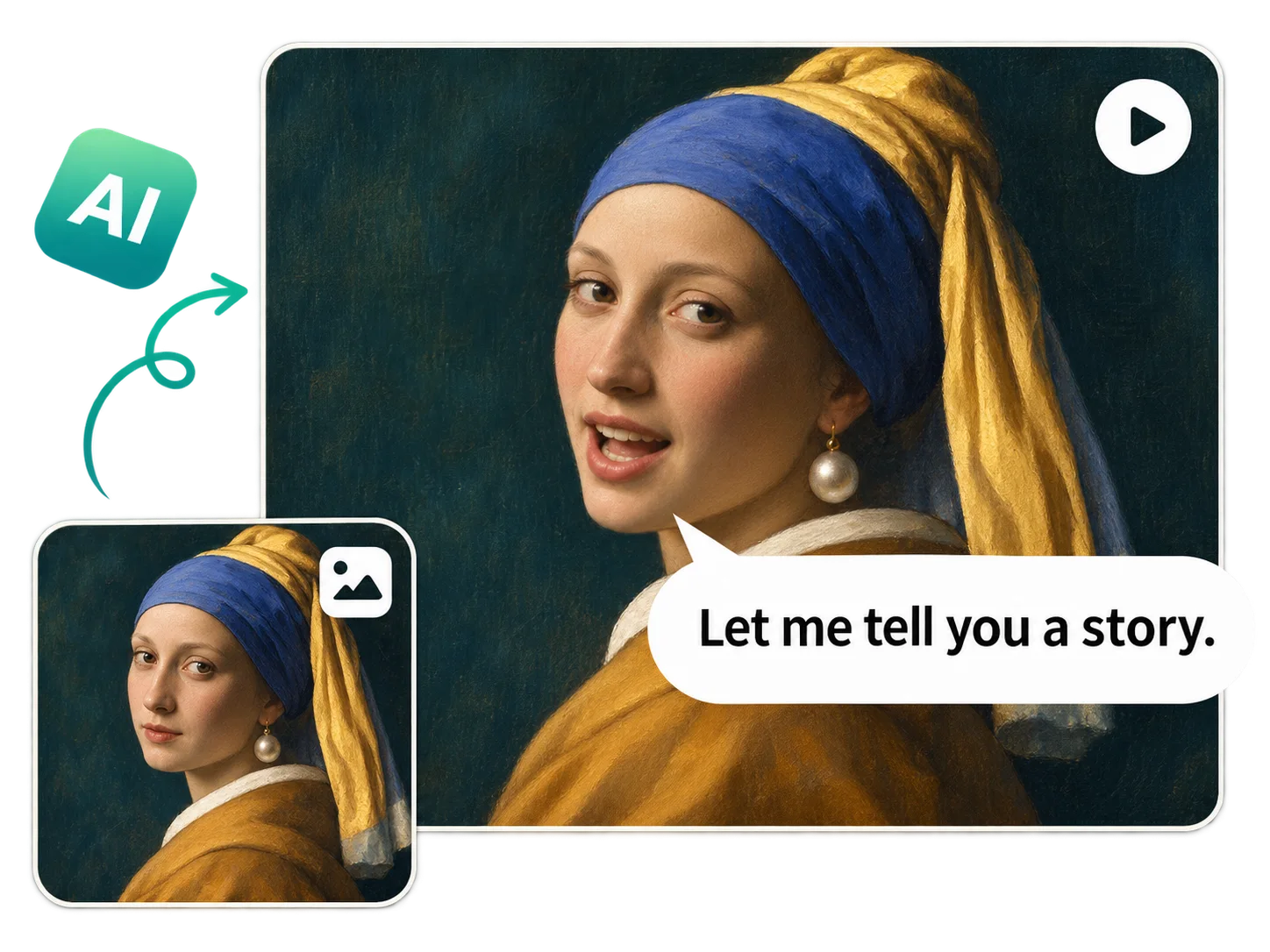
Type the Words You Want Your Photo to Say
Give the person in your photo a sentence that belongs to your project. Include a recipient's name, a detail from a scene, or a reply that makes sense in context. An original character might say, “I found this in your car,” while a welcome message can address a friend directly. PicLumen's face animator lets you include dialogue in your prompt. Put the spoken line in quotation marks, then describe the action separately. This keeps the words you want to hear distinct from the directions for the scene. If you want to change the message, revise the sentence and generate another take from the same portrait. You can compare different openings, questions, or replies while working from the image you already chose.
Add Expression to the Eyes, Brows, and Mouth
A raised eyebrow can make a reply feel doubtful. A relaxed smile can make the same words more welcoming. With PicLumen's AI face animator, you can describe the facial expression that suits your line, from a restrained response to a more noticeable reaction. Give the expression a clear direction: a neutral face becoming amused, a brief blink before a reply, or a smile that appears after the person recognizes someone. These visible actions communicate more than an instruction such as “look emotional.” You can also use face animation for a moment with no dialogue. A listener's changing expression, a quick glance aside, or a quiet smile can give a scene a reaction that viewers understand without an explanation.

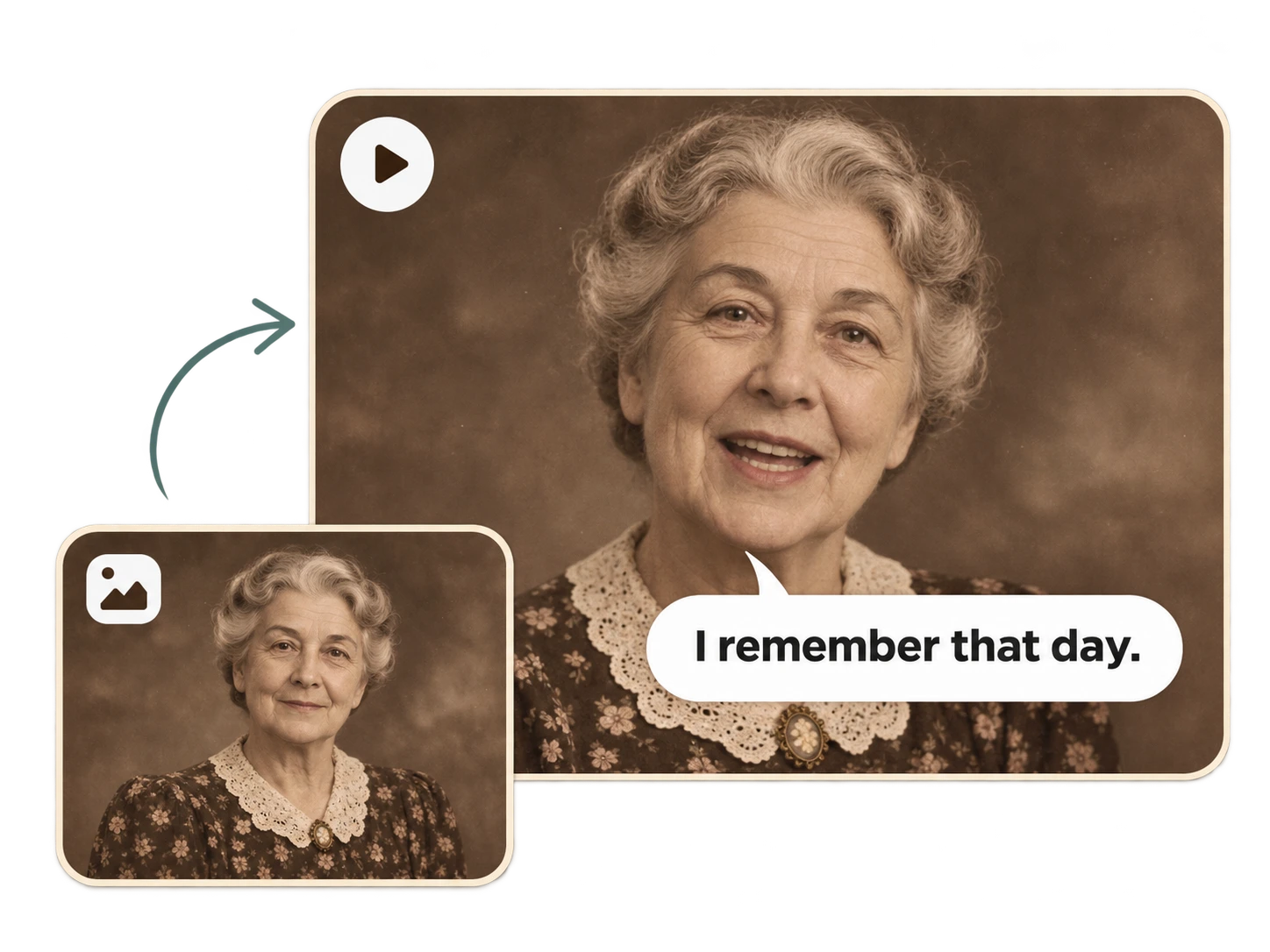
Add a Nod, Tilt, or Gentle Head Turn
Head movement helps establish where the person's attention is going. Ask for a brief nod toward the viewer, a slight sideways tilt, or a slow turn toward someone outside the frame. Describe the direction, size, and pace of the movement in your prompt. The timing of that action can also be part of your request. “A slight nod after speaking” asks the face animator for a different performance than “a slow head turn before speaking.” Treat these as directions to explore, then judge the generated take. Keep the camera instruction separate. If you want a stationary close-up, say “keep the camera still.” This makes it clear that the person's head should move within the shot while the viewpoint stays fixed.
Start With Your Own Photo or an Original Character
Upload a selfie, a studio portrait, or a character image you've already created. If your project needs a new person, build a portrait with PicLumen's AI face generator, save the image, and bring it into the face animator template. Prepare the appearance in the still image first. Clothing, hairstyle, background, lighting, and viewing angle all affect how the resulting clip fits your project. A formal headshot may suit a direct introduction, while a character already placed in a room gives a story scene a more specific setting. Keep the source portrait with your project files. It gives you a consistent starting reference when you return to try another line, expression, or head movement.
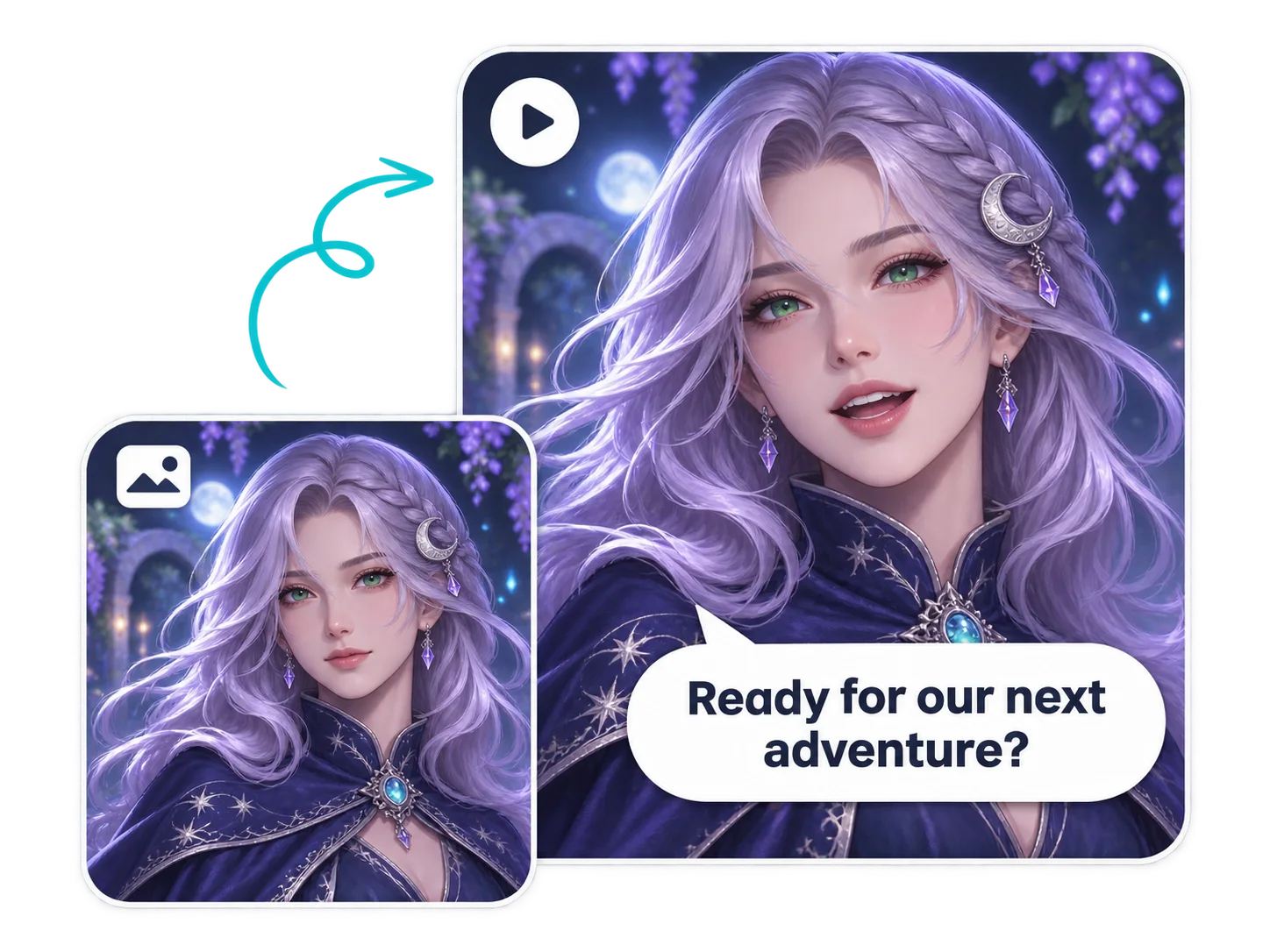
Create Dialogue Clips, Personal Greetings, and Social Reactions
Give a Short Drama Character a Line
Build a speaking shot around a moment that moves the story forward. A detective might reveal a clue, a roommate might ask an uncomfortable question, or a character might admit something they have been hiding. Use PicLumen’s face animator to create one character’s line, then prepare the next speaker separately. In your video editor, place the clips in sequence and cut to a silent reaction where the conversation needs a pause. This gives you room to decide how long the viewer stays with each person. Prepare the source portraits with continuity in mind. Check clothing, lighting, and the direction each character is looking so the shots belong in the same exchange. A close-up can carry a brief line; a wider source image may be more useful when the surroundings help explain the scene.
Make a Video Greeting That Addresses Someone by Name
Turn a portrait into a birthday wish, a welcome message, or a personal thank-you. Start with something you would actually say: “Happy birthday, Mia. Save me a slice of cake.” A name and one recognizable detail make the message feel written for its recipient. A face animator is useful when you already have a photo that belongs to the occasion. You might use a favorite portrait for a celebration or an original character for a playful invitation. Write the message around the relationship and the event, then choose an expression that fits. Preview the name and the full sentence before sharing. If several people are contributing to a celebration video, place the talking photo between their messages, photographs, and other footage in your editor. You can also make separate versions for different recipients by changing the dialogue and generating each clip individually.
Turn a Selfie Into a Speaking Reaction
Give a social post a spoken response that viewers recognize from everyday life. A selfie can deliver a dry “Well, that went according to plan,” or ask, “Was that really necessary?” with a doubtful look. Use the face animator to create the reaction, then decide what gives it context. It might follow a setup clip, appear beside a caption, or interrupt a longer video as a cutaway. A brief pause before the line or a held expression afterward can be part of the performance you request. Leave space around the face if you plan to add text in your editor. Check the crop at phone size, especially for vertical posts, and keep important captions away from the eyes and mouth. Listen to the clip with sound and preview it with captions so you know the reaction reads clearly in both versions.
How to Animate a Face From a Photo With PicLumen
Upload Your Portrait
1Open the face animator template and upload the photo you want to animate. PicLumen’s image-to-video upload supports JPG, JPEG, PNG, and WebP. Use your chosen portrait or save an AI character image first, then upload that file. The source image should show the person in the appearance and setting you want to begin with.
Enter Your Dialogue and Action
2Write the line you want spoken in quotation marks. Outside the dialogue, describe the expression, head movement, and camera position. You can start with one of the examples above and change the sentence to suit your project. For an unspoken reaction, describe the action and request no dialogue.
Review Your Settings and Lumens
3Review the video options available in the template, including any controls for framing, duration, or resolution. Check that the selected format fits the project you are making. Look at the Lumen cost before generating, and account for additional attempts if you plan to compare several lines or performances.
Generate, Listen, and Download
4Play the entire clip with sound. Check that the sentence finishes, listen closely to names and unusual words, and watch how the expression develops. Compare the face with your original image, including the final frames. Download the take you want to use, then bring it into your editor for captions, cuts, or a longer sequence.


Loved by Creators Worldwide
Real feedback from designers, marketers, and hobbyists sharing their PicLumen experience on Trustpilot.
 Alfred Rangel R
A wonderful range of options to create…
A wonderful range of options to create truly dreamlike visual effects with all those colors; only imagination is the limit.
 Jon Jon
Very good website
Very good website. Different models, good job
 Ayan Samanta
Awesome experience just looking wow
Awesome experience just looking wow
ClashOf ClansExcellent platform to fantasy
Excellent platform to fantasy
It’s been great so far
It’s been great so far, I think the limitations are me not the app.
 Menu Lawrence
Very fantastic app
Very fantastic app. I love it. I will like everyone to use this App
 Fatjon Xhoka
Super app for photo and video
Super app for photo and video
Great tool
Great tool, I made fantastic results with it.
Abdul RafayBest wishes for the developer
Best wishes for the developer
matthew sepulvedaCool I can create cool things
Cool I can create cool things
 Nagavali Srinivas
excellent images are generated
excellent images are generated
Amazing work!
Amazing work!! Love it already made some art and people love will be making more!
Face Animator FAQs
Is PicLumen’s face animator free to use?
You can sign up for free and explore the welcome offer available to your account. Generating videos uses Lumens, with costs depending on the template, model, and settings. Review the displayed cost and your balance before starting. Each additional generation uses Lumens, so include the versions you want to compare when planning your available credits. Current account and subscription options are listed on the pricing page.
Can I choose what my photo says?
Yes. Include your own line of dialogue in the face animator prompt. You can address someone by name, ask a question, or use a sentence from your script. Keep the spoken words separate from the instructions for expression and movement. Review the resulting speech before sharing, particularly when it includes names or unusual terms. To try different wording, revise the line and generate another version.
Can I animate a face from a photo without dialogue?
Yes. Use the face animator to request a visual reaction, such as a blink, a smile, or a nod, and specify no dialogue. This can be useful for a listener’s response or an animated portrait that introduces a person. Check the generated audio as well as the movement. If the final clip needs to be completely silent, mute any remaining audio in your video editor.
Will it use the person’s real voice?
Entering dialogue does not recover someone’s original voice from a photo. The image provides a visual reference, while the text supplies the words you want spoken. Neither input contains a recording of that person’s voice. Matching an existing recording is a separate requirement from making a photo speak from text, so assess the generated delivery on its own rather than treating it as the person’s authentic recorded speech.
Will the animated face look exactly like my photo?
Your photo guides the animation, but generated details can change. Review the eyes, mouth, teeth, hairline, and overall face shape throughout the clip. A result can look convincing at the beginning and change during a larger movement. Keep the original portrait beside the video when assessing likeness. If the face drifts during a turn or a broad expression, try a smaller action before moving on to another source image.
What video lengths, resolutions, and aspect ratios are available?
The available settings depend on the template and selected model. Review the options shown before generating. Where supported, 9:16 suits vertical posts, 16:9 suits widescreen scenes, and 1:1 suits square compositions. Choose the duration with the spoken line in mind, and check that the crop leaves room for the requested movement. A close-up prepared for a vertical greeting may need different framing for a widescreen conversation.
Can I use anime characters or pet photos?
PicLumen’s image-to-video workflow supports illustrated and anime-style character images. A clearly defined face gives you a more useful starting point for evaluating the result. Pet portraits and unusual facial proportions need individual testing; human expression instructions may not translate as you expect. Begin with a simple action and inspect the movement, any speech, and the visual style before planning a more involved sequence.
Will the downloaded video have a watermark?
PicLumen’s paid subscription plans include watermark-free creation. Free access and welcome offers have their own applicable benefits. Check the export conditions for your account before preparing the final version of a project. Generation costs and download benefits are different details to review: having enough Lumens for a clip does not by itself explain its export conditions. The current pricing plans list the available subscription benefits.
How does PicLumen handle uploaded photos?
Uploaded images are used as input for AI generation. PicLumen’s Privacy Policy explains data collection, sharing, and requests for access, correction, or deletion of personal data. Refer to that policy for the conditions that apply to your information. For a question about an uploaded photograph or a privacy request, contact service@piclumen.com and explain which account or upload your question concerns.
Turn a Single Photo Into a Talking Video With Your Own Dialogue
Give a character the next line in your story or send a greeting that mentions someone by name. With PicLumen’s AI face animator, you choose the words and describe the reaction, turning a still portrait into a video with something personal to say.
- AI Image Extender
- AI Video Generator
- AI Background Remover
- AI Image to Video Generator
- AI Fantasy Character Generator
- AI Food Image Generator
- AI Statue Generator
- AI Stencil Maker
- Eye Color Changer
- AI Drama Generator
- AI UGC Video Generator
- Animate Old Photos
- Earth Zoom Out
- Remove CapCut Watermark
- AI Video Background Changer
- AI Wedding Video Maker
- AI Wallpaper Generator
- 3D Avatar Creator
- AI Banner Generator
- AI Virtual Try On
- AI Ad Video Generator
- AI Anime Video Generator
- AI Santa Gifting Video