
AI Kung Fu Turkey:Dog



AI Kung Fu Turkey:Dog

Christmas Ice Queen: Pet Dog Edition

Boom Clap Confetti Paws

Singing Birthday Cat
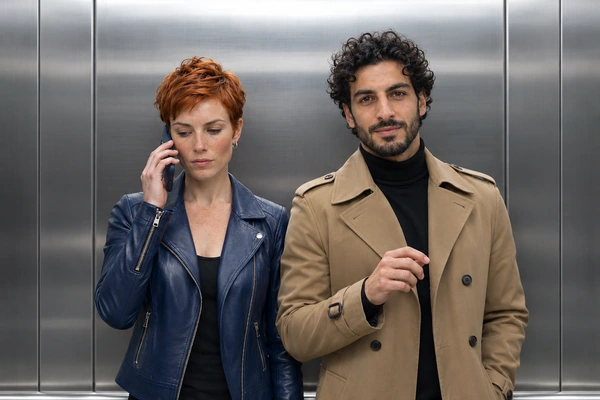
365 Elevator Phone Call

AI Kung Fu Turkey:Cat

Christmas Ice Queen: Animated Version

Boom Clap Confetti High Five

Banana Leaf River Glide
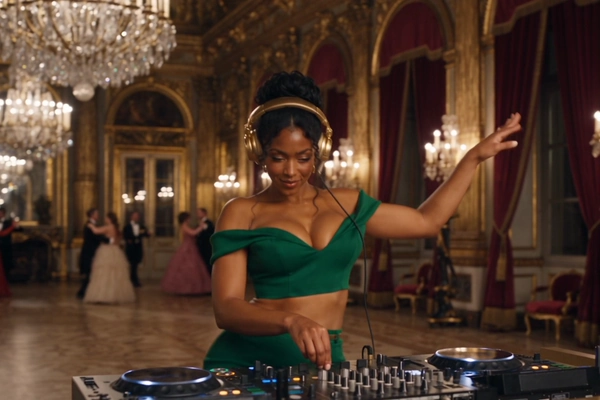
Emerald Ballroom Groove

AI Kung Fu Turkey

Matching Xmas PJs – Snowflake

Boom Clap Solo Spotlight

Banana Leaf Crocodile Escape
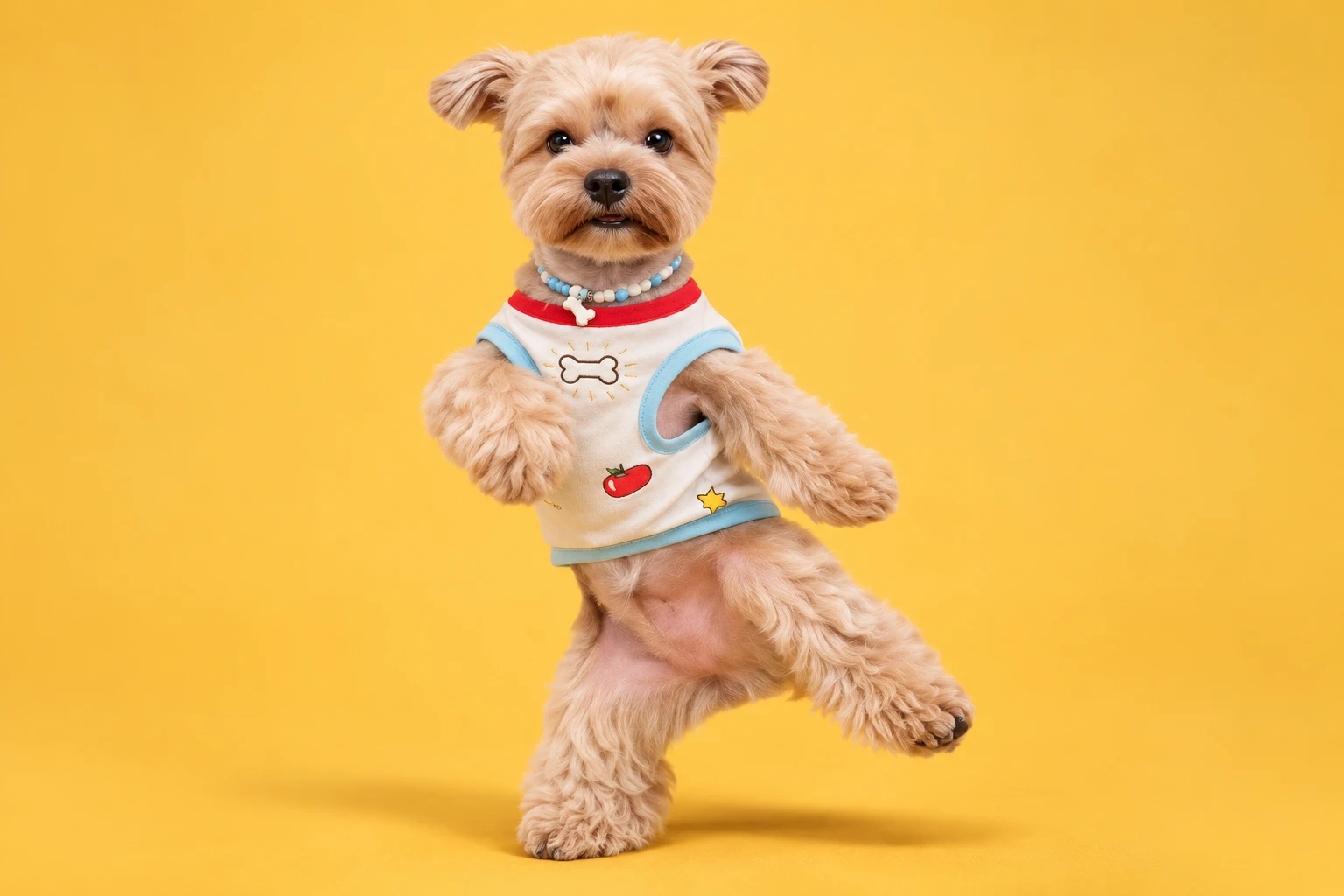
Tsundere Hmph Pet Dance

Christmas Ice Queen

Matching Xmas PJs – Reindeer

Singing Birthday Monkey

Banana Leaf Palm Landing

Shoulder Carry Flip AI Video

Christmas Ice Queen: Pet Cat Edition

Matching Christmas Pajamas

Singing Birthday Dog
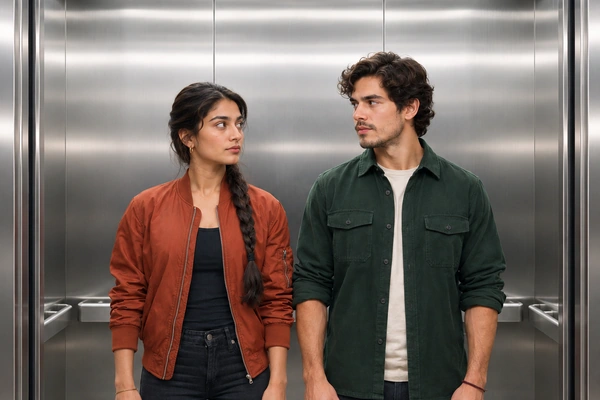
365 Elevator Walk In
Turn your photos into fun dance clips, surprising transformations, and shareable moments with trending AI video effects.
Some pairings are funny before anyone says a word. PicLumen's 365 Elevator template brings two people into a steel elevator setting, with the attention on their expressions and the space between them. Start with separate photos and see how the pairing plays out. A best friend, a partner, or two original characters can give the same scene a very different mood.
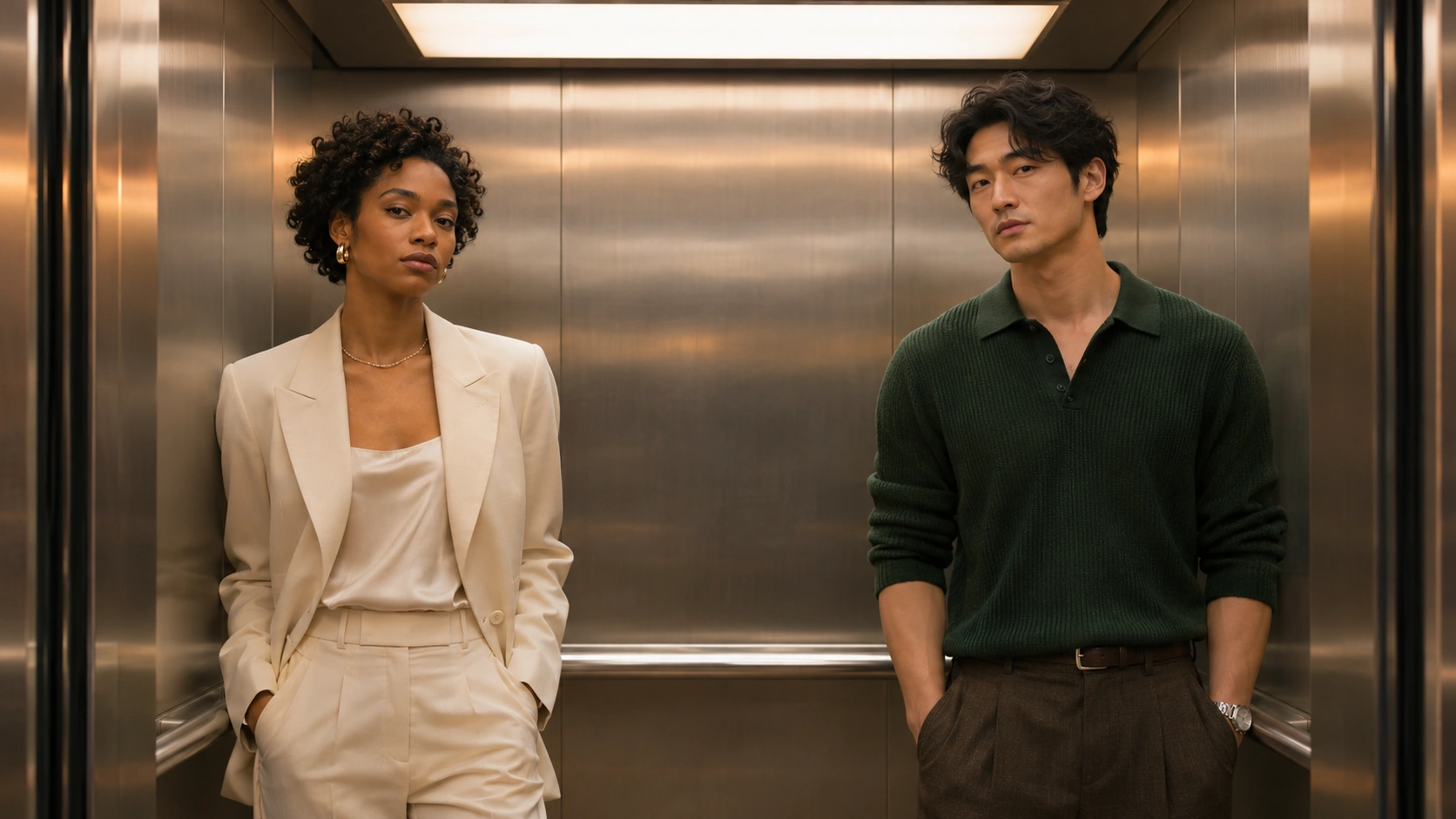
A straight face can make the scene funnier than a big reaction. The Silent Stare concept keeps attention on the pair, leaving viewers to read the mood and decide what might have happened before this elevator ride.
A sharp suit beside a relaxed weekend outfit can be enough to give your duo a story. Choose reference photos with distinct looks so the pairing has personality even before you add a caption.
The elevator gives your pair a shared setting without explaining their relationship. Add a caption when you post to turn that quiet moment into a friendship joke, an awkward encounter, or a scene from your own story.

Getting both people in the same place is often the hardest part of making a duo video. This template starts with two separate uploads, so there is no need to arrange a joint photo or find an elevator to film in. Choose a clear image of each person, add them to the two required slots, and let the template bring the pair into the scene.
A familiar face beside an unexpected companion gives people a reason to watch. Try a polished portrait next to a casual one, or bring together two characters from the same story. The elevator setting stays central while the subjects give the clip its personality. If an original character needs a reference first, create one with PicLumen's AI image generator, then return to the template.
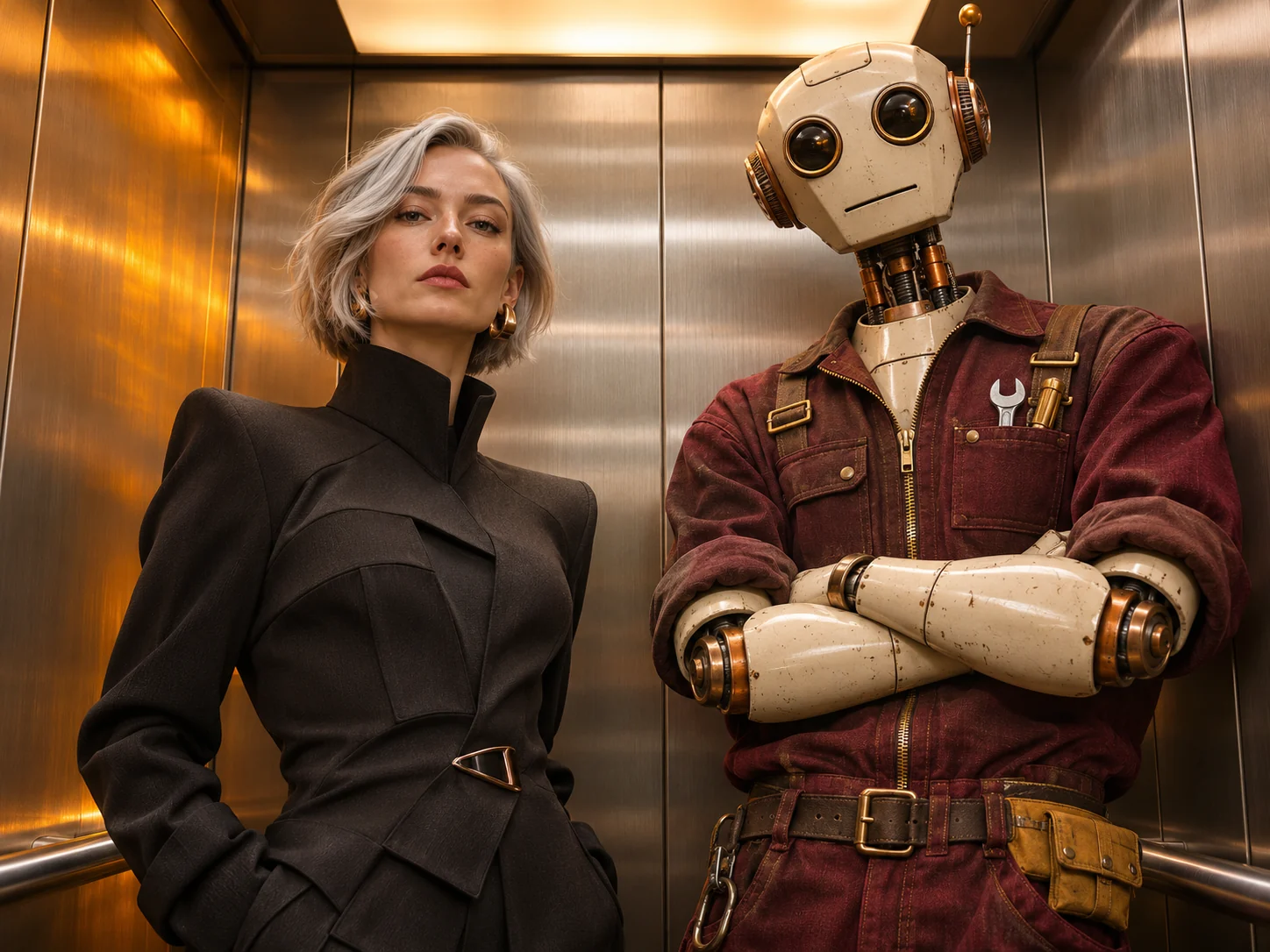
Open the creation panel and check that 365 Elevator Silent Stare is selected. Watch the template preview to see the scene you will use for your duo.
Add one person's image to the first Upload Photo field and the other person’s image to the second. Both fields are required; choose clear photos with visible faces.
Check that both photos have finished uploading, then click Generate. The template provides the scene direction, so there is no prompt to write before you start.
Watch the generated clip and check both faces, expressions, and overall framing. If either person is difficult to recognize, try a clearer reference photo before generating another version.
Pair your photo with a friend’s and give your group chat something to react to. Add a caption about the two of you stuck together after an awkward conversation, or let everyone come up with their own explanation.
Make a duo clip with your partner without arranging a shoot together. Use photos that show your different styles, then share the elevator moment with a caption about your first meeting, an inside joke, or your contrasting personalities.
Writers and character creators can introduce a duo through a brief shared scene. Place two original adult characters in the elevator and use the post to ask viewers about their relationship before revealing more of the story.
Give the elevator scene a situation your audience recognizes: meeting your gym rival, standing beside your deadline, or sharing a lift with the friend who knows too much. Add the context as a caption in your social post.


Real feedback from designers, marketers, and hobbyists sharing their PicLumen experience on Trustpilot.
Jon JonVery good website
Very good website. Different models, good job
 jsbsbsbs hdhdhshwhw
Very cool i like it it's so smooth
Very cool i like it it's so smooth
Awesome program easy to use a little…
Awesome program easy to use a little disappointment in the fact you can’t buy lumies
KIDSCARTOONThis ap great and amazing generate pic
This ap great and amazing generate pic
 rockstar gaming
Value For Money
its value for money i fully recommend you to try this one time you will like it...
 Zara
Piclumen still remains the best…
Piclumen still remains the best with image references. I don't have any complains using Piclumen. It makes my work easier
 Aleks Visha
Great kompany in the world
Great kompany in the world
 GPS BelAR
I tried the tool for fun and only used…
So far, I've only tried PicLumen for fun and used the free ‘basic option’. Even as an AI design novice, you can achieve great results. It should be emphasised here that if you choose a simple AI, the coins are enough to just give it a try (unlike some other tools). I like the community concept; the opportunity to get inspiration for your own ideas in the image gallery, as well as the option to ‘like’ and comment on other users' creations. The result depends, of course, on the quality of the prompt entered, but ‘practice makes perfect, as we all know!’ The only reason for the one-star deduction is that I can't try everything with the free access and can't comment on the paid options.
 Mani Sravani Bandaru
Very great pictures with high quality
Very great pictures with high quality
The Uncharted TimelineThis ai
This ai generated image very natural and beautiful HD quality
 Ayyan Naveed
It's good
It's work very I am totally satisfied from this app I am very happy after use it
 Saima Rizwan
Awesome Piclumen customer service!!
As a small creator balancing a full-time career job and with a passion for visual storytelling, I’ve used many platforms but PicLumen stands out for its genuine care and responsiveness. When I reached out with a request to adjust Lumen credits for my creative needs, their team responded with empathy, flexibility, and a clear commitment to supporting artists like me. Not only did they listen, they acted and credited Lumen offering with thoughtful solutions that made me feel valued, as a customer. Their communication was prompt, respectful, and encouraging, and they treated my feedback with real consideration. PicLumen isn’t just a tool it’s a partner in creativity. If you’re a creator looking for a platform that understands your journey and supports your growth, I wholeheartedly recommend them. Thank you, PicLumen, for making the creative process feel human, hopeful, and beautifully supported.
You can turn two separate photos into an AI duo video using the 365 Elevator Silent Stare scene. The template places the pair in a steel elevator setting, with the focus on their expressions and the quiet tension between them.
Yes. Both Upload Photo fields are required in this template. Add one image for each person. Two separate, clear photos are a better starting point than uploading the same group photo into both slots.
No. 365 Elevator Silent Stare starts with two photos and a click of the Generate button. There is no prompt field or source-video upload in this workflow; the selected template supplies the scene concept.
Choose sharp, well-lit photos with one person clearly visible in each. Keep facial features unobstructed and avoid heavy filters, blurred faces, and tight crops that remove most of the head. Visible shoulders and clothing give the model more appearance information.
Start with references that show each face clearly, then review both people in the generated clip. Recognition and smaller details can vary. If one face looks off, replace that person’s reference with a sharper, more direct view and try again.
If you want the song used in the trend, add an available licensed sound when editing your post on your chosen social platform. Check the available sound library on that platform; track availability can vary by region and account type.
Check the credit requirement for 365 Elevator Silent Stare in PicLumen before generating. Refer to the current template price rather than the cost of another effect.